
Guide
How to Unblur Text in an Image
Last updated: September 17, 2026
Blurred text is the most common reason people look for an unpixelate tool — and the case with the most important caveats. Here is what works, what does not, and where the honest line sits.
First, work out which kind of blur you have
“Blurred text” covers two completely different situations, and they have opposite outcomes:
- Compression and low resolution. The text was captured small, enlarged, or squeezed by a messaging app. The letterforms are still there — smeared, blocky, but structurally present. This kind responds well to AI reconstruction.
- Deliberate obscuring. Someone painted over the text, put a solid bar across it, or applied a heavy mosaic before sending. The information was removed on purpose. No tool can bring it back, and anything that appears in its place is the model’s invention.
The test is simple: if you can still guess the letterforms from their shapes, there is structure left to reconstruct. If the region is flat, there is not.
What AI does with blurred text
Text is one of the best cases for AI reconstruction, because letterforms are highly structured. The model reads the surviving edges of each glyph and estimates the sharp strokes that most plausibly produced them. On a compressed screenshot or scan, this often turns barely-readable text into comfortable reading — not by magic, but because the shapes were recoverable.
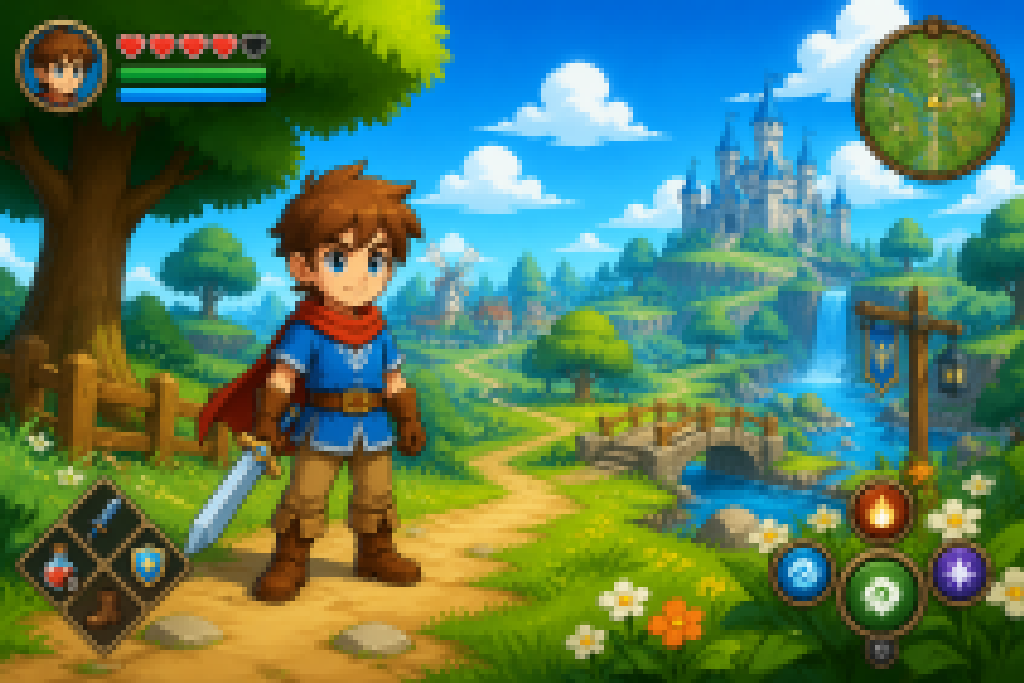 BeforeAfter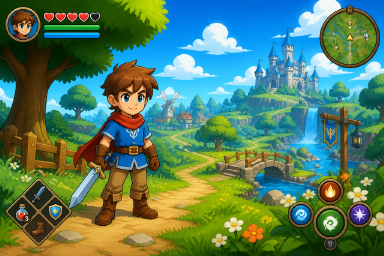
Drag the divider and look at the HUD corners: blocky text strokes on the left, estimated strokes on the right.
What AI cannot do
- It cannot recover genuinely missing text. Obscured, painted-over or heavily mosaicked characters are gone; the model can only produce plausible-looking marks in that region, and those marks may be entirely wrong.
- It is not a transcription. A legible-looking result is still an estimate. For anything that matters — an amount, a date, a name — verify against the original source rather than trusting the reconstruction.
- Confidence is not accuracy. The output does not know when it is wrong. Sharp-looking invented text is more dangerous than honest blur, which is why we say plainly: do not use results as evidence.
Method 1: AI reconstruction (best for compressed text)
- Sign in with Google. 2 free credits on sign-up, no credit card required.
- Crop tight around the text first. Output is delivered at a fixed size (4MP on Quick, 8MP on Standard and HD), so a tight crop concentrates it on the letters.
- Upload and pick a mode. JPG, PNG or WEBP up to 10 MB. Quick costs 1 credit, Standard and HD cost 2 — HD adds the strongest detail reconstruction and is available from the Pro plan.
- Compare and download. Most jobs finish in under a minute; failed jobs do not use credits.
If the first pass is not legible enough, try a tighter crop or the HD mode before concluding the source has nothing left to give.
Method 2: contrast and sharpening tricks (best for mild softness)
For text that is only slightly soft, the free tools on your phone may be enough. In the iPhone Photos app or Google Photos, nudge Sharpen, Definition, Contrast and a small Brilliance boost; on desktop, an unsharp mask does the same job with more control. Darkening the background behind light text (or the reverse) often helps readability more than sharpening itself.
These tricks raise contrast; they do not rebuild lost strokes. If letters look like blocks rather than soft edges, move on to Method 1.
Method 3: get a better source instead
Often the fastest “unblur” is not repairing the image but replacing it:
- Ask for the original file instead of a re-screenshot from a chat.
- Copy the text itself. If the text lives in a document, email or web page, select and copy it — pixels never needed to be involved.
- Re-render the source. A PDF page viewed at 400% zoom and captured piece by piece beats one full-page screenshot stretched afterwards.
- Capture at native resolution and crop later — see our screenshot guide for the full technique.
A note on consent
Only upload images you own or have the right to use. When someone has deliberately obscured text in an image they sent you — a redacted contract, a blurred-out name, a masked code — that obscuring may exist for privacy, contractual or legal reasons. This tool does not recover deliberately obscured information, and we’d ask you not to treat reconstruction as a way around someone else’s redactions. The legitimate cases are the ones this page is about: your own screenshots, scans and compressed files where the detail survives but the sharpness does not.
Frequently asked questions
Can AI make blurred text readable?
Often, yes, when the blur comes from compression or low resolution. The model estimates text edges from the structure that survives, which can improve legibility. Results vary with how much detail is left, and the output is an estimate, not a transcription.
Can AI recover text that was censored or painted over?
No. When text has been deliberately obscured, the information is genuinely missing and no tool can recover it. The model may produce plausible-looking marks where the text was, and those marks can be entirely wrong — which is exactly why results must not be treated as evidence.
Why is text in screenshots blurry in the first place?
Text is the first thing to suffer when an image is enlarged past its native detail or re-compressed by a messaging app, because letterforms depend on sharp edges. A screenshot of a screenshot loses a further layer of that edge detail on every pass.
Does cropping the image help before uploading?
Yes. Results are delivered at a fixed output size, so a tight crop around the text puts more of those output pixels onto the letters themselves instead of empty background.
Is it all right to unblur text in someone else's image?
Only upload images you own or have the right to use. Text that someone deliberately obscured may be that way for privacy or legal reasons — attempting to defeat those redactions is neither supported by this tool nor something we encourage.
How much does it cost?
New accounts get 2 free credits, valid for 7 days, no credit card required. Quick returns 4MP for 1 credit; Standard and HD return 8MP for 2 credits. Failed jobs do not use credits.
More guides
- Working on screenshots generally? See how to unpixelate a screenshot.
- The complete background — causes, methods, prevention — is in how to unpixelate an image.
- On a phone? Fixing a blurry picture on iPhone covers the mobile workflow.
Try it free — 2 credits on sign-up, no credit card required
unblur text free